Category: HobbyCNC Blog

HobbyCNC Blog

  • Experience is a tough teacher

    [et_pb_section bb_built=”1″ admin_label=”section”][et_pb_row admin_label=”row”][et_pb_column type=”4_4″][et_pb_image admin_label=”Image” src=”https://hobbycnc.com/wp-content/uploads/2018/06/Success_Quote-1.jpg” show_in_lightbox=”off” url_new_window=”on” use_overlay=”off” animation=”left” sticky=”off” align=”left” force_fullwidth=”off” always_center_on_mobile=”on” use_border_color=”off” border_color=”#ffffff” border_style=”solid” url=”https://www.brainyquote.com/quotes/winston_churchill_131188?img=4″ /][et_pb_text admin_label=”Text” background_layout=”light” text_orientation=”left” use_border_color=”off” border_color=”#ffffff” border_style=”solid”]

    When my children were growing up I used to tell them that “Experience is a difficult teacher; she gives the test first and the lesson afterwards“. I have found frequently throughout my career that I tend to learn the most when I fail. Mistakes are annoying and often embarrassing, however we tend to learn a lot more from them then we do from success.

    I’ve assembled dozens and dozens of HobbyCNC boards. Most without incident. Occasionally a component backwards or missing but generally the product tests out very well. This evening however testing my final board, the A axis motor wasn’t turning. The motor current setting was set at 3 Amps (0.42 volts). I could easily move the stepper motor with my fingers.

    By chance, I looked at the microstepping jumpers. I test the boards at 1:2 microstepping (J1 installed). But for the A axis on this board, I forgot to put the jumper on J1. As soon as I added the jumper, the A axis started working perfectly.

    I wonder if some of my customers might have had problems getting their axes to start turning and the problem might have been something as simple has no jumpers on the microstepping header!? Thanks to this simple mistake I’ve learned something new that will now go into my debugging FAQs!

    [/et_pb_text][/et_pb_column][/et_pb_row][/et_pb_section]
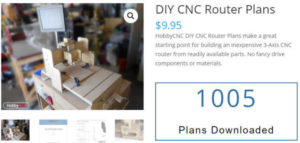
  • 1000th DIY CNC Plan Downloaded!

    I’m DIY CNC Router Plans, HobbyCNCdelighted to share that we just had the 1,000th download of our DIY CNC plans! I have such fun with my home-built machine that I wrote-up the plans, documented all the dimensions and assembled it into 72 pages of instructions! If you’re looking to get into CNC Cutting, you may want to check out madecnc.co.uk, for all your equipment requirements.

    It is a pleasure and an honor to see so much interest in our DIY CNC Plans and the simple build-it-yourself design. It is simple (plywood, aluminum angles, and skateboard bearings), but it is more than sufficient to experiment with CNC without breaking the bank.

    Revision 3 of our DIY CNC Plans is in the works now (Update: Rev 3 DIY CNC Plans are released!) with:

    • dimensions in imperial and metric
    • all drawings moved to Fusion 360
    • Bill of materials consolidated into one large BOM
      (was one BOM per section/assembly)

    I’m planning to make the CAD drawings available for purchase also, if you want to modify the design.

    Thanks to everyone who downloaded our plans!

  • PC Board with Solder Mask

    [et_pb_section bb_built=”1″ admin_label=”section” custom_padding=”0px|0px|0px|0px”][et_pb_row admin_label=”row” custom_padding=”0px|0px|0px|0px”][et_pb_column type=”1_2″][et_pb_text admin_label=”Text” background_layout=”light” text_orientation=”left” use_border_color=”off” border_color=”#ffffff” border_style=”solid”]

    One of the things I like to use my DIY CNC router for is to make PC boards using the isolation routing technique. My latest prototype is Isolation routed PCB with solder mask for an opto isolator board to be used with the HobbyCNC Pro when the user experiences “false triggers” of their limit or home switches. I don’t encourage or use shielded wiring (see my post To Shield or Not To Shield (your wiring). But when nothing else works, this opto board will solve the problem.

    This time I tried the addition of a dry film solder mask. This is my first attempt after some testing to figure out the time under the UV light (30 seconds in my case). It’s not quite perfect, but it is good enough for now. Holding the artwork down against the board with some glass will help, and having a black background below the board seems to help too.

    [/et_pb_text][/et_pb_column][et_pb_column type=”1_2″][et_pb_image admin_label=”Image” src=”https://hobbycnc.com/wp-content/uploads/2017/12/Dry_Solder_Mask.jpg” alt=”Dry Film Solder Mask, HobbyCNC, DIY CNC Router, PCB isolation routing” animation=”off”]
    [/et_pb_image][/et_pb_column][/et_pb_row][/et_pb_section]
  • The Power of Checklists

    [et_pb_section bb_built=”1″ admin_label=”section” custom_padding=”0px|0px|0px|0px”][et_pb_row admin_label=”row” custom_padding=”0px|0px|0px|0px”][et_pb_column type=”2_3″][et_pb_text admin_label=”Text” background_layout=”light” text_orientation=”left” use_border_color=”off” border_color=”#ffffff” border_style=”solid”]

    I’ve started using checklists. A few nights ago I made a small, careless mistake and wrecked one of my nice 60 degree milling bits (at $14 a pop).

    My ‘favorite’ mistakes include:

    • restarting LinuxCNC and forgetting to reload my program
    • forgetting to connect the probe wiring before running the autoleveller
    • Jogging an axis with the motors powered-off (losing my home)
    • Leaving the probe wiring connected so I get a probe error as soon as the tool touches the workpiece.

    So, in the interest of saving time, money, parts and frustration, I finally created a basic checklist. I keep thinking “this is easy, I’m pretty good at it”. Followed by the sound of a axis reaching it’s torque limit.

    I set up the checklist in three parts: Setup, milling, cleanup. This particular example is for isolation-routing PC boards.
    I put the page in a plastic sleeve so I can use a whiteboard marker and erase it when I’m done.

    So far, so good. Now I need a checklist to remind me that I’m not smarter than the checklist.


    [/et_pb_text][/et_pb_column][et_pb_column type=”1_3″][et_pb_image admin_label=”Image” src=”https://hobbycnc.com/wp-content/uploads/2017/09/milling_checklist.jpg” alt=”Pre-milling checklist example – HobbyCNC” title_text=”Checklist example” show_in_lightbox=”on” sticky=”on” /][/et_pb_column][/et_pb_row][/et_pb_section]
  • Where has all the power gone?

    Making sure your stepper motor wiring is robust and secure is critical. Most (all?) stepper motor driver instructions include the warning “do not connect/disconnect motors while power is applied”. Curious why?

    A brief-yet-incomplete intro to stepper motors is appropriate. Stepper motors contain several windings. These windings are very large inductors. By their nature, inductors a) resist changes in current flowing through them and b) store energy in the magnetic field they create.

    Steppers are often rated at a very low voltage and fairly high current – like 3 Volts and 3 Amps per winding. Yet we suggest a very large power supply, at 36 Volts (or more depending on the driver). My board (and most others) energize a winding by slamming (a technical term) the voltage to the winding and monitoring the current flow. When the current hits the max setting, the board backs-off the voltage, in my case by using a chopper technique – often you can hear the motors ‘whine’ at the chopper frequency.


    [one_half]
    As the current begins to flow in the winding, a LOT of energy is stored as a magnetic field around the winding. When that winding is turned-off, that magnetic field collapses quickly, in turn generating a lot of power – and this power needs to be dissipated (typically as heat) by the driver board. So far, so good.

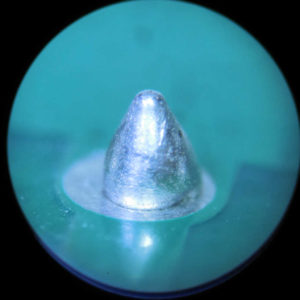
    So what happens when you mess with the wires while the motor is powered-up? Here’s one example. Take a close look at the solder joint in Figure 1. This is the common for the a-A winding at the terminal strip for the x-axis. The solder is hanging onto the pin, but not making good contact to the PC board trace. It worked for an hour-or-two. At some point, this connection opened-up.

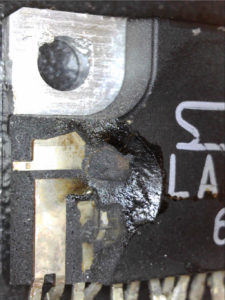
    Remember all that power stored in the winding? It’s going somewhere. Since it couldn’t go through the common pin, it had to go through the driver chip – causing enough heat to blast-off a chunk of the driver IC.

    For the record, this is NOT covered by warranty.

    Pro Tip: Make double-sure your power supply is at zero volts before you mess with any stepper motor wiring!
    [/one_half]

    [one_half_last]
    Bad Solder Joint

    Figure 1. Bad solder joint (magnified 40x)

    Blown Chip

    Figure 2. Blown driver chip
    [/one_half_last]

  • We all make misteaks

    [et_pb_section bb_built=”1″ admin_label=”section”][et_pb_row admin_label=”row”][et_pb_column type=”1_2″][et_pb_text admin_label=”Text” background_layout=”light” text_orientation=”left” use_border_color=”off” border_color=”#ffffff” border_style=”solid”]

    I recently assembled 5 PRO 4-axis boards. I’m pretty careful. I follow directions. I am quite familiar with the boards.

    Only 60% (three out of five for you non-math types) worked first time! Oh the shame.  Careful(er) visual inspection revealed the problems:

    • One board, I neglected to solder one of the pull-up SIP packages.
    • Other board (image to the right): I had one electrolytic capacitor in backwards (they don’t like that). It was quickly replaced.- You can’t just turn them back around the right way, you’ve got to replace them!

    The moral of this story is pretty clear and is consistent with my years in tech support – the majority of problems can be found with careful visual inspection. Yes, I did use magnification to check all my solder joints. All my soldering was perfect. Nevertheless, both of the issues I had were found without anything but my eyes.

    * Kudos to everyone who caught the intentional spelling error in the blog title.

    [/et_pb_text][/et_pb_column][et_pb_column type=”1_2″][et_pb_image admin_label=”Backwards_Cap” src=”https://hobbycnc.com/wp-content/uploads/2017/07/Backwards_Cap.jpg” show_in_lightbox=”off” url_new_window=”off” use_overlay=”off” animation=”off” sticky=”off” align=”left” force_fullwidth=”off” always_center_on_mobile=”on” use_border_color=”off” border_color=”#ffffff” border_style=”solid” /][/et_pb_column][/et_pb_row][/et_pb_section]

  • Tech Support – The Voltages Are All Wrong!

    [et_pb_section bb_built=”1″ admin_label=”section” custom_padding=”14px|0px|54px|0px”][et_pb_row admin_label=”row” custom_padding=”0px|0px|27px|0px”][et_pb_column type=”4_4″][et_pb_text admin_label=”Text” background_layout=”light” text_orientation=”left” use_border_color=”off” border_color=”#ffffff” border_style=”solid”]

    Had an interesting tech support problem last week. The customer was measuring wrong voltages all over his HobbyCNC board. The 5 Volt test point measured 4.85 Volts. The test point should be between 4.95 and 5.05 Volts (5 Volts +/- 1%). The output of the LM317HV should be 31.6 Volts, but was measuring out at 30.6 Volts.
    All the resistor values were proper, the power supply was 36 Volts. None of the regulators was getting hot.
    The customer and I arrived at the solution independently.

    The 5 Volt line was reading 3.2% low. Interestingly, the 31.6 volt line was also about 3.2% low also.

    The culprit was a bad voltmeter! Customer purchased a new voltmeter and all voltages were dead-on accurate.

    Sometimes the problem isn’t where you think it is. We take our test and measurement equipment for granted, and once-in-a-while it lets us down.

    On an only somewhat related topic, I have, and I occasionally use, one of the “Free with any purchase” Harbor Freight voltmeters. It’s fun to watch Dave Jones of the EEV Blog do a test and teardown. Accuracy is actually pretty impressive. Safety, however, is another issue.

    [/et_pb_text][/et_pb_column][/et_pb_row][/et_pb_section]

  • To Shield or Not To Shield (your wiring)

    [et_pb_section bb_built=”1″ admin_label=”section” custom_padding=”0px||0px|”][et_pb_row admin_label=”row” custom_padding=”27px|0px|9px|0px”][et_pb_column type=”2_3″][et_pb_text admin_label=”Text” background_layout=”light” text_orientation=”left” use_border_color=”off” border_color=”#ffffff” border_style=”solid”]

    Should you use shielded wire or not? I don’t use any shielded wire on my DIY CNC, and I haven’t had any noise or ‘phantom triggers’. I do notice interference (like a ‘fuzzyness’) on my computer monitor when I hit the power to my stepper motors, however, but that is only mildly annoying.

    The input pins on the HobbyCNC boards are fairly high impedance, being pulled-up with a 10k resistor.  There is a potential for induced noise to creep into these signal lines. One of my customers was having a devil of a time with false triggers stopping his milling jobs. He added shielded wiring – no improvement. So we tried the solution I run on my machine – an opto isolator board (Fig 1).

    But not just any cheap-ass opto board. I designed my opto board to have a very low impedance to minimize the impact of any induced voltages. I also designed each circuit to have it’s own 20mA current-source to allow the addition of LEDs in the wiring to add convenient indication of current flow without having to change any parts on the opto board (more on this in another post). We tested the board, and I’m pleased to say that, so far, there are zero phantom triggers.

    The purpose of such a board is to electrically isolate delicate components (like your computer) from ugly, real-world possibilities, like putting a voltage on a wire that could fry your PC.  Better to blow an Opto board instead.

    Properly powering the Opto board matters a great deal. Imagine the opto board has two ‘halves’ – one half is not isolated, and it connects to your sensitive computer.  The other half must have it’s own completely independent, fully isolated power supply, connected to nothing else. Using any power source from your PC or any other power supply in your system will completely invalidate the isolation. I have no idea how often this happens, but I’d guess too often.

    Also, I made my own ‘twisted pair’ wiring for my limit and home switches. I take two wires, clamp one end in a vice and the other into the chuck of my hand drill. Pull taut, pull the trigger, and walk toward the vise as the wires twist, keeping gentle but steady pull on the wires.

    Summary: skip the shielding (though it won’t hurt anything if applied correctly), use twisted-pair for your limit and home switch wiring, and if that’s not enough, add an opto board (which isn’t a bad idea on general principle).

    [/et_pb_text][/et_pb_column][et_pb_column type=”1_3″][et_pb_image admin_label=”Image” src=”https://hobbycnc.com/wp-content/uploads/2017/04/My_vs_Cheap.jpg” show_in_lightbox=”on” animation=”off” sticky=”on” /][et_pb_text admin_label=”Text”]

    Fig 1. HobbyCNC prototype opto board (left) vs. cheap, basic opto board.

    [/et_pb_text][et_pb_image admin_label=”Image” src=”https://hobbycnc.com/wp-content/uploads/2017/04/Opto_installed.jpg” show_in_lightbox=”on” sticky=”on” /][et_pb_text admin_label=”Text”]

    Fig 2. HobbyCNC prototype opto board installed in customer system.

    [/et_pb_text][/et_pb_column][/et_pb_row][/et_pb_section]

  • KiCAD, FlatCAM and milling slots in a PC Board

    [et_pb_section bb_built=”1″ admin_label=”section” custom_padding=”0px|0px|0px|0px”][et_pb_row admin_label=”row” custom_padding=”14px|0px|27px|0px”][et_pb_column type=”2_3″][et_pb_text admin_label=”Text” background_layout=”light” text_orientation=”left” use_border_color=”off” border_color=”#ffffff” border_style=”solid”]

    I needed a quick-and-dirty 36VDC unregulated linear power supply to drive some HobbyCNC boards on my test system. I wanted the bridge rectifier to mount directly to the PC board.  The beefy bridge rectifier that I had in my stock was the type with the large spade-type terminals. I needed to mill slots in a PC board for mounting this bulky part.

    Getting slots in the PC board took some digging. I designed the bridge rectifier footprint in KiCAD to have oval pads with oval holes, but this did not translate via the drill file into FlatCAM – only one round hole would be drilled.

    To make the slots, I had to create a New Geometry ‘layer’ and add simple straight lines dead center of where I wanted the slots milled. FlatCAM would then just mill one pass, centered over that line. This required a third milling file – one for the bottom Cu, one for drilling and the third for the four slots.

    Came out P E R F E C T!  Next board will have some pretty fine geometry, squeezing traces between DIP pads.  We’ll see. . .

    [/et_pb_text][/et_pb_column][et_pb_column type=”1_3″][et_pb_image admin_label=”Image: Slots in PB Board” src=”https://hobbycnc.com/wp-content/uploads/2017/04/Slots.jpg” show_in_lightbox=”on” alt=”Mill slots in a PC board with KiCAD and FlatCAM – HobbyCNC” url_new_window=”off” use_overlay=”off” animation=”left” sticky=”off” align=”left” force_fullwidth=”off” always_center_on_mobile=”on” use_border_color=”off” border_color=”#ffffff” border_style=”solid” /][/et_pb_column][/et_pb_row][/et_pb_section]

  • KiCAD and FlatCAM to isolation route PCBs

    [et_pb_section fb_built=”1″ admin_label=”section” _builder_version=”3.0.47″ custom_padding=”6px|0px|0px|0px”][et_pb_row custom_padding=”0px|0px|0px|0px” admin_label=”Row” _builder_version=”3.0.48″ background_size=”initial” background_position=”top_left” background_repeat=”repeat”][et_pb_column type=”4_4″ _builder_version=”3.0.47″][et_pb_text admin_label=”Text” _builder_version=”3.19.14″ background_size=”initial” background_position=”top_left” background_repeat=”repeat” use_border_color=”off” border_color=”#ffffff” border_style=”solid”]

    EDIT: I have documented the KiCAD to G-code process here: hobbycnc.com/pc_board_isolation_routing/

    As a follow-up to my last post on Autodesk and Eagle, I did my first PCB isolation routing using the KiCAD and FlatCAM to LinuxCNC toolchain. I did schematic capture and board design on KiCAD and Gerber-to-GCode on FlatCAM. It took a few hours to get somewhat comfortable with the products and process. Obviously, I couldn’t check the PCBs as thoroughly as some of the industrial x ray services out there today because I’m just a hobbyist but I still think I did a decent job. Some of it is still a bit fuzzy to me, but I got it to work anyway.

    I ran a ‘pen-test’ of the PCB last night (Video 1). I’ve seen this dozens of times, but it still fascinates me just as much as the x ray checks industrial PCBs go through.

    I just finished drilling-and-routing the ‘real thing’ today. I used my new Tapered-stub Trace Isolation Tools from PreciseBits. The results were fantastic. You can see 20x magnification in Figs 2 & 3 – this was right off the machine with no sanding (I did go over it with a stiff, plastic-bristled brush to get off the loose debris).

    Overall, I’m pleased with the quality of KiCAD and FlatCAM to produce any type of PCB I’ll ever need. However, for business technology, perhaps using a company like Altium might be in your best interests to make sure that PCB software is created properly.

    One final thought – yes, indeed, chemical etching can give much more precise results, and finer geometries, at the added cost of caustic chemicals. Where Isolation Routing wins big-time is the drilling of the holes. Believe-it-or-not, there are just over 100 holes in this damn board!

    [/et_pb_text][/et_pb_column][/et_pb_row][et_pb_row admin_label=”Row” _builder_version=”3.0.48″ background_size=”initial” background_position=”top_left” background_repeat=”repeat”][et_pb_column type=”4_4″ _builder_version=”3.0.47″][et_pb_video src=”https://vimeo.com/209688802″ admin_label=”Video” _builder_version=”3.0.47″][/et_pb_video][et_pb_text admin_label=”Video 1 caption” _builder_version=”3.0.74″ background_size=”initial” background_position=”top_left” background_repeat=”repeat” custom_margin=”0px|||” custom_padding=”0px|||”]Video 1.”Pen test” before milling
    [/et_pb_text][/et_pb_column][/et_pb_row][et_pb_row admin_label=”Row” _builder_version=”3.0.48″ background_size=”initial” background_position=”top_left” background_repeat=”repeat”][et_pb_column type=”1_3″ _builder_version=”3.0.47″][et_pb_image src=”https://hobbycnc.com/wp-content/uploads/2017/03/Opto_PCB.jpg” alt=”Finished PCB isolation routing using KiCAD and FlatCAM. HobbyCNC” title_text=”Fig 1. Finished PCB isolation routing using KiCAD and FlatCAM” show_in_lightbox=”on” admin_label=”Image finished board” _builder_version=”3.0.74″ animation=”off”][/et_pb_image][et_pb_text admin_label=”Fig 1 caption” _builder_version=”3.0.74″ background_size=”initial” background_position=”top_left” background_repeat=”repeat” custom_margin=”5px|||”]Fig 1. Completed, milled board
    [/et_pb_text][/et_pb_column][et_pb_column type=”1_3″ _builder_version=”3.0.47″][et_pb_image src=”https://hobbycnc.com/wp-content/uploads/2017/03/DIP_Pads_20X.jpg” alt=”20x close-up of .1%22 DIP pads PCB isolation routing using KiCAD and FlatCAM. HobbyCNC” title_text=”Fig 2. 20x close-up of .1%22 DIP pads PCB isolation routing using KiCAD and FlatCAM” show_in_lightbox=”on” admin_label=”Image DIP Pads” _builder_version=”3.0.74″ animation=”off”][/et_pb_image][et_pb_text admin_label=”Fig 2 caption” _builder_version=”3.0.74″ background_size=”initial” background_position=”top_left” background_repeat=”repeat” custom_margin=”5px|||”]Fig 2. 20x close-up of .1″ DIP pads
    [/et_pb_text][/et_pb_column][et_pb_column type=”1_3″ _builder_version=”3.0.47″][et_pb_image src=”https://hobbycnc.com/wp-content/uploads/2017/03/TO-92_Pads_20X.jpg” alt=”20x close-up of TO-92 pads PCB isolation routing using KiCAD and FlatCAM. HobbyCNC” title_text=”Fig 3. 20x close-up of TO-92 pads PCB isolation routing using KiCAD and FlatCAM” show_in_lightbox=”on” admin_label=”Image TO-92″ _builder_version=”3.0.74″ animation=”off”][/et_pb_image][et_pb_text admin_label=”Fig 3 caption” _builder_version=”3.0.74″ background_size=”initial” background_position=”top_left” background_repeat=”repeat” custom_margin=”5px|||”]Fig 3. 20x close-up of TO-92 pads
    [/et_pb_text][/et_pb_column][/et_pb_row][/et_pb_section]